ScreenShield
Hide sensitive info when you share your screen in Zoom
Updated October 21, 2026
Zoom shows your audience whatever is on the screen you share. If that's a CRM, an admin panel or your inbox, private information goes along with it. ScreenShield hides it in Chrome before anyone can read it.
Zoom in the browser
If you join Zoom meetings in Chrome, at app.zoom.us or through a meeting link that opens in the browser, Presentation Mode can turn on by itself:
- Click Share Screen in Zoom and choose what to share.
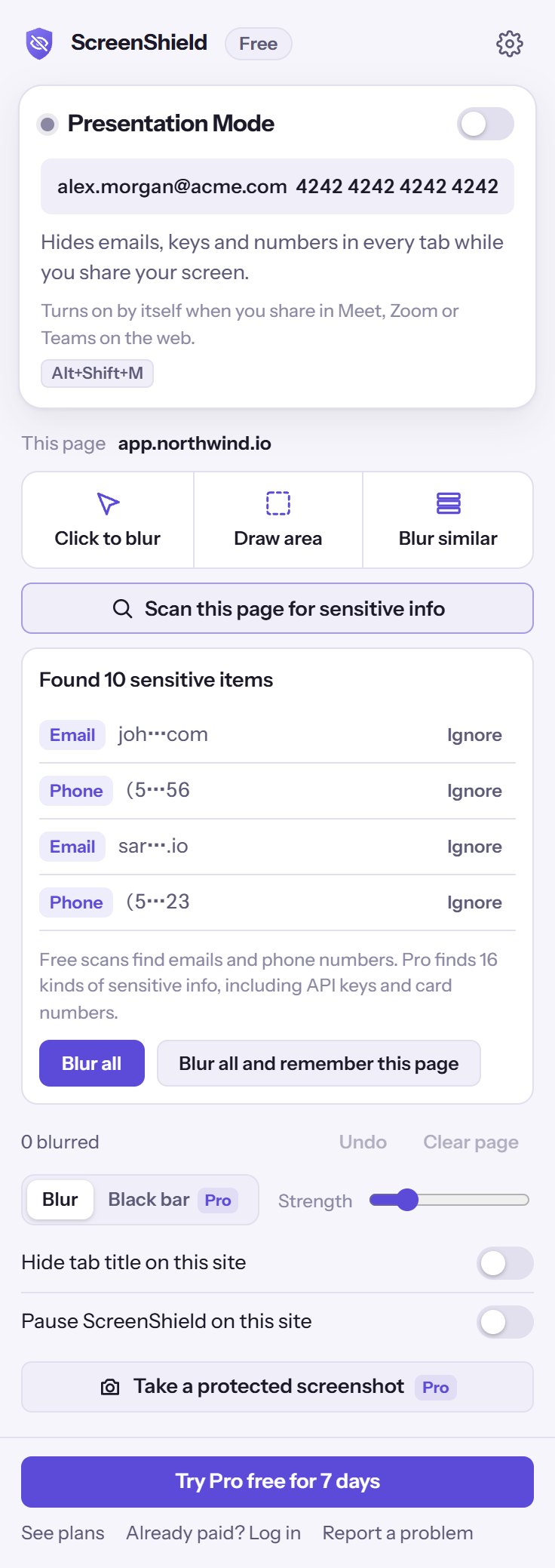
- ScreenShield notices that sharing started and turns on Presentation Mode (Pro). Sensitive info is hidden in every open tab and your other tabs' titles are masked.
- When you stop sharing, it turns off again.
The Zoom desktop app
When you share from the Zoom app, Chrome can't tell that sharing started, so turn protection on yourself:
- Before you click Share Screen, press Alt+Shift+M in Chrome, or open the ScreenShield popup and turn on Presentation Mode.
- Share a Chrome window or your screen in Zoom. The web pages in Chrome are protected.
- When you're done, press Alt+Shift+M again.
On the free plan, prepare the pages you'll show instead: scan them for emails and phone numbers and choose Blur all, and use Click to blur, Draw area or Blur similar for everything else. Your blurs are saved for each site.
Share a window, not your whole screen
Zoom lets you share a single app window. Sharing only your Chrome window keeps notifications, chat apps and your desktop out of the meeting. Combined with ScreenShield, what your audience sees is the page you mean to show and nothing else.
If something slips through
- Press Alt+Shift+H to hide the whole screen instantly, then press it again when it's safe.
- Click the item with Click to blur. It stays blurred the next time you open that page.
- With Pro, add names and project code names as your own keywords so they're always hidden.