ScreenShield
Keep private info out of your Loom recordings
Updated October 21, 2026
Once a recording is shared, anything visible in it is out of your hands. Blurring a video afterwards takes time, and re-recording takes longer. With ScreenShield, the private parts of the page are already hidden while you record.
Before you hit record
- Open the pages you'll walk through.
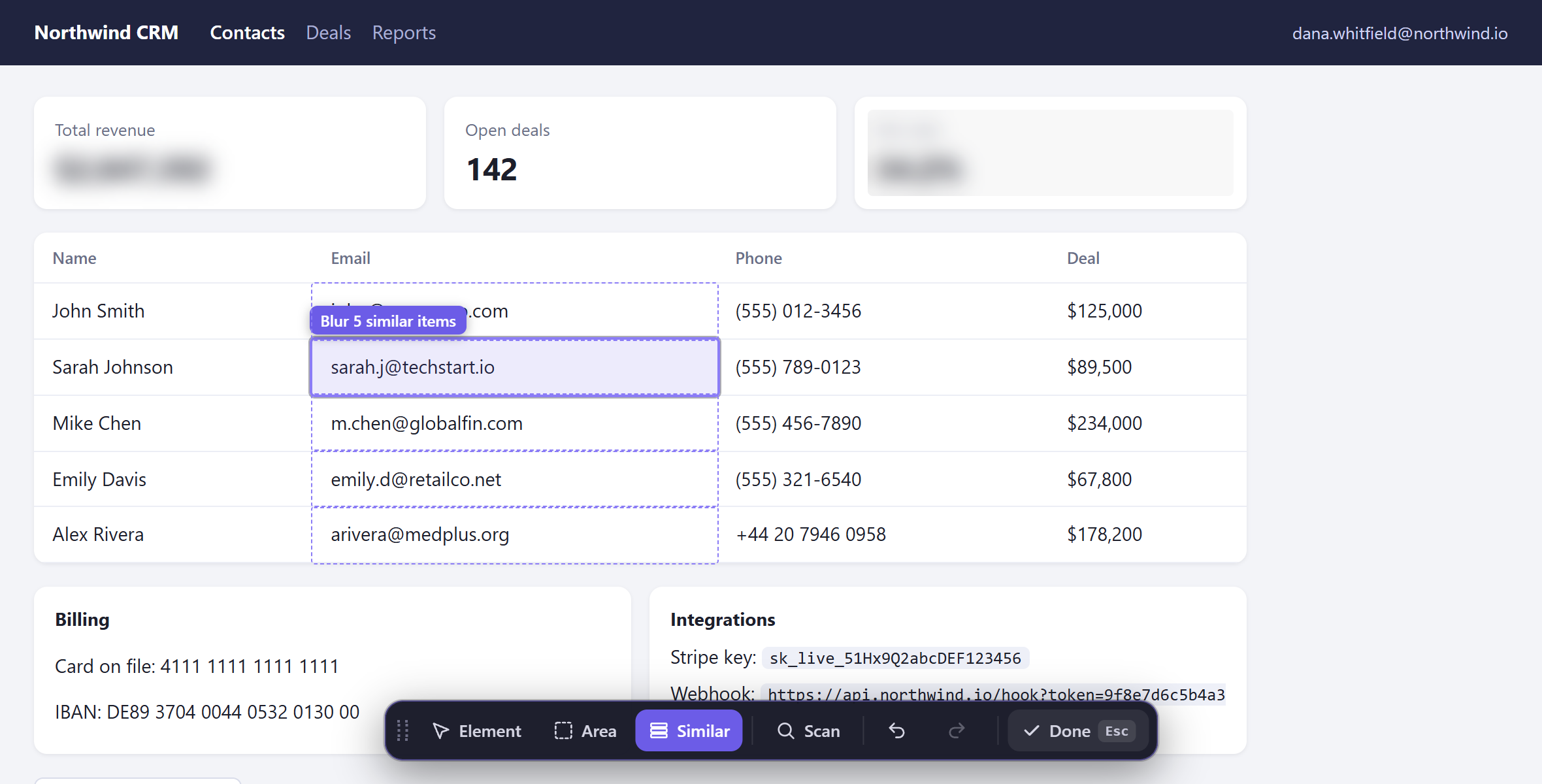
- On each page, open the ScreenShield popup and blur what shouldn't be seen: Click to blur for single items, Draw area for a region, and Blur similar for a whole column of a table. The page scan finds emails and phone numbers for you.
- With Pro, press Alt+Shift+M to turn on Presentation Mode. Sensitive info is then hidden in every tab, including pages you didn't prepare, and your tab titles are masked.
- Start recording with Loom, or any other screen recorder.
The blur is part of the page, so the recording only ever contains the blurred version.
Record the same flow again later
Blurs are saved for each site and come back when you return, so the next recording of the same flow needs no setup. If a site changes its layout and a blur doesn't come back, blur it again.
Tips
- Record a tab or a window, not your whole screen, so notifications from other apps stay out of the video.
- Black bars: with Pro, you can cover things with solid black instead of a blur, which some teams prefer for recordings.
- Protected screenshots: for docs and support replies, take a screenshot with everything already hidden from the popup (Pro).
- Watch it once before sharing. ScreenShield lowers the risk a lot, but no tool catches everything.