 ScreenShield
Hide sensitive info when you present in Google Meet
Updated October 21, 2026
When you present in Google Meet, everyone on the call sees exactly what's on your screen, including customer emails, account numbers and the notification that pops up at the wrong moment. Here's how to keep that private.
Pick what you share
When you click Present now, Meet asks what to share:
- A tab shows one Chrome tab only. It's the safest choice for a demo, because nobody sees your other tabs, your bookmarks bar or your desktop.
- A window shows one window, including every tab you switch to in it.
- Your entire screen shows everything, including notifications from other apps.
Share a tab whenever you can. If you need to switch between pages, share a window and let ScreenShield protect the tabs in it.
With the free plan: blur things before you present
- Open the page you're going to show.
- Click the ScreenShield icon and choose Scan this page for sensitive info. Review what it found and choose Blur all. The free scan finds emails and phone numbers.
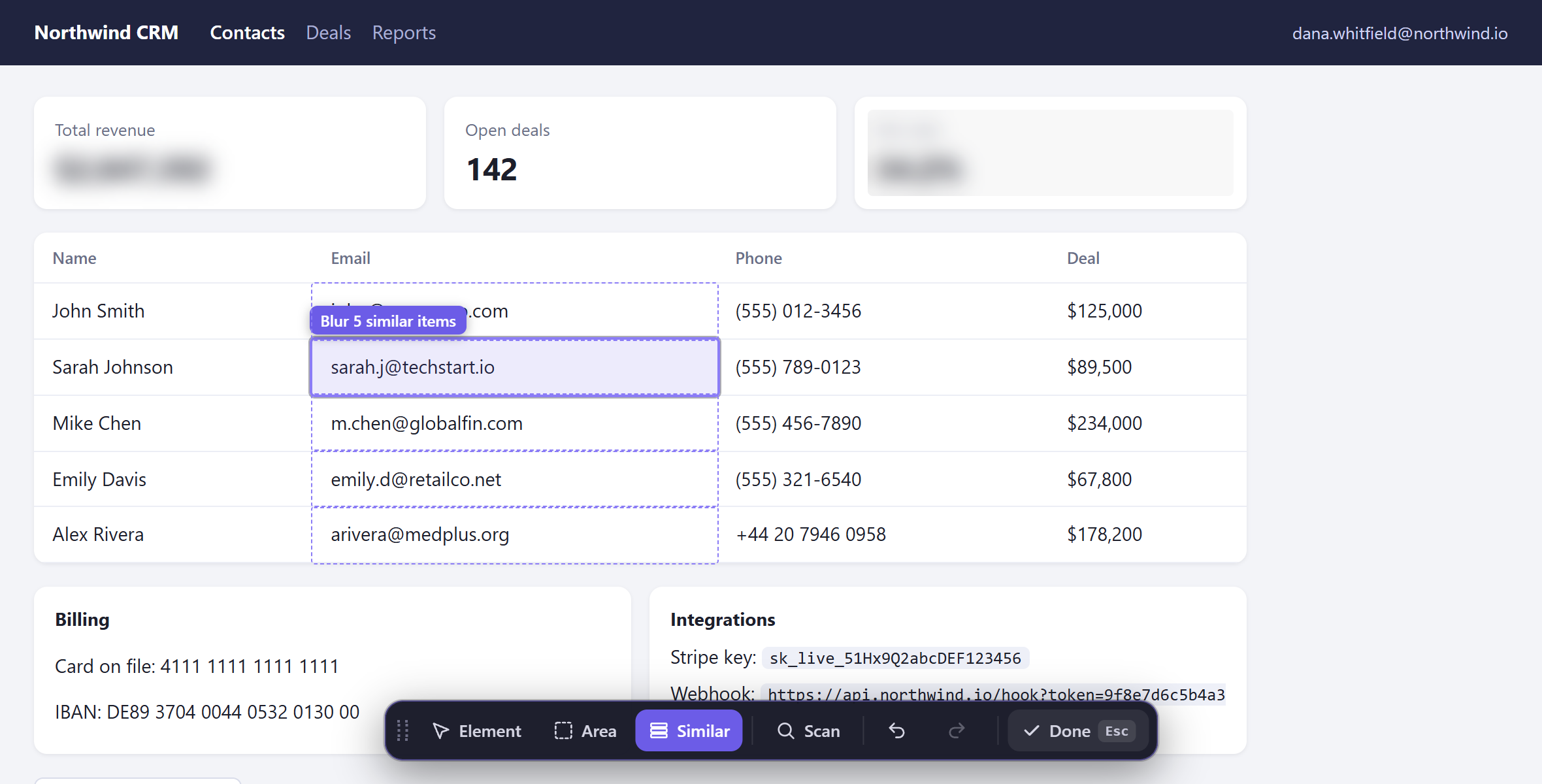
- For everything else, such as names, balances or a chart, choose Click to blur and click each item, or Draw area to cover a region. To hide a whole column in a table, choose Blur similar and click one cell.
- Press Esc when you're done, then present in Meet. Your blurs are saved for the site, so next time they're already there.
With Pro: let Presentation Mode do it
- Click Present now in Meet and choose what to share.
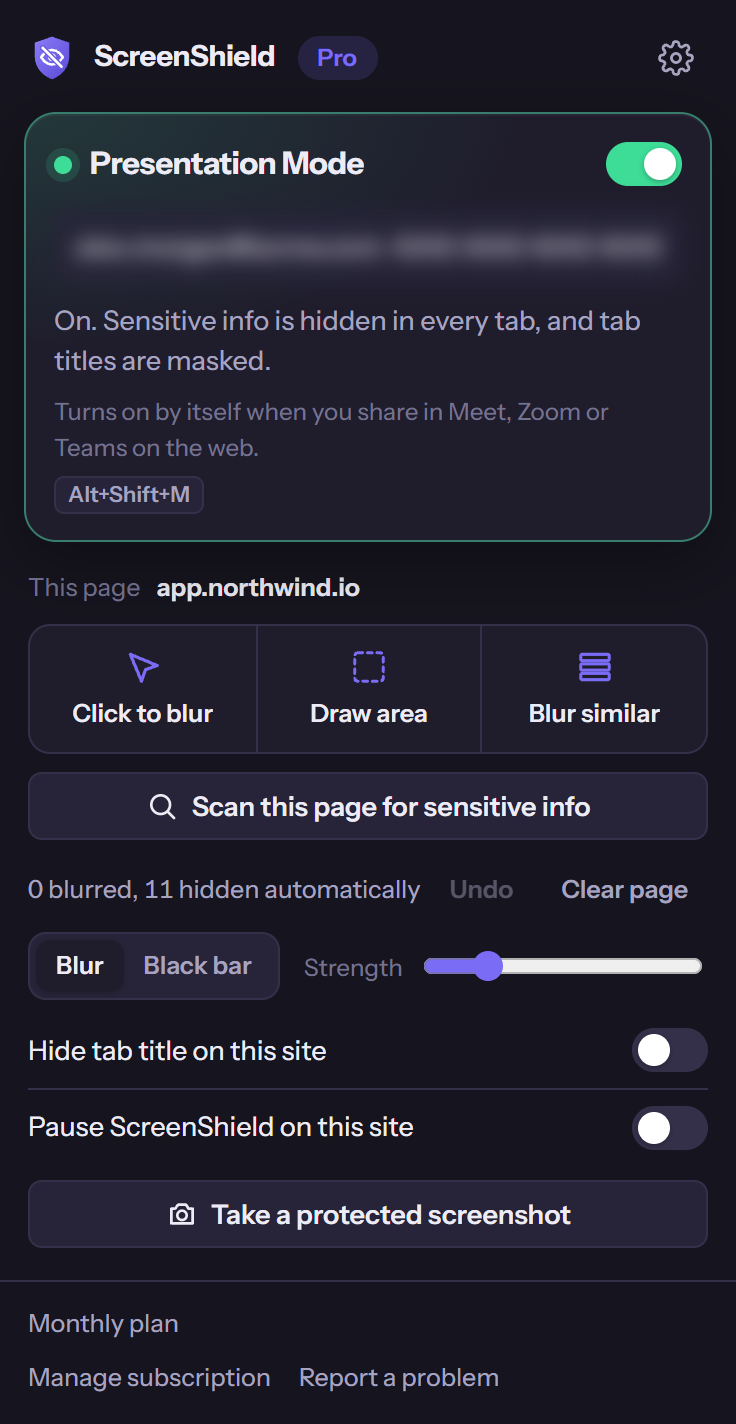
- ScreenShield notices that you started presenting and turns on Presentation Mode. The toolbar icon shows ON.
- Emails, phone numbers, card numbers, IBANs, API keys, tokens and more are hidden in every open tab, not only the one you're presenting, and the titles of your other tabs are replaced with "Private tab".
- When you stop presenting, Presentation Mode turns off and everything goes back to normal.
Tips for a clean Meet presentation
- Panic key: if something private appears anyway, press Alt+Shift+H to hide the whole screen at once. Press it again to show it.
- Your own keywords: with Pro, add client names or project code names in ScreenShield's settings and they're hidden everywhere.
- Tab titles: even on the free plan, you can hide a tab's title on any site from the popup.
- Before you share: look over the page once. ScreenShield lowers the risk a lot, but no tool catches everything.